Create your first field set and confirm that users can enter the new profile fields on the profile edit screen.
01
Install the plugin
Upload the plugin ZIP file from the WordPress admin screen under Plugins, Add New Plugin, then activate it.
The free version is enough to add profile fields and organize the admin profile screen. Pro is an add-on that extends the free version.
02
Open Field Management and choose how to start
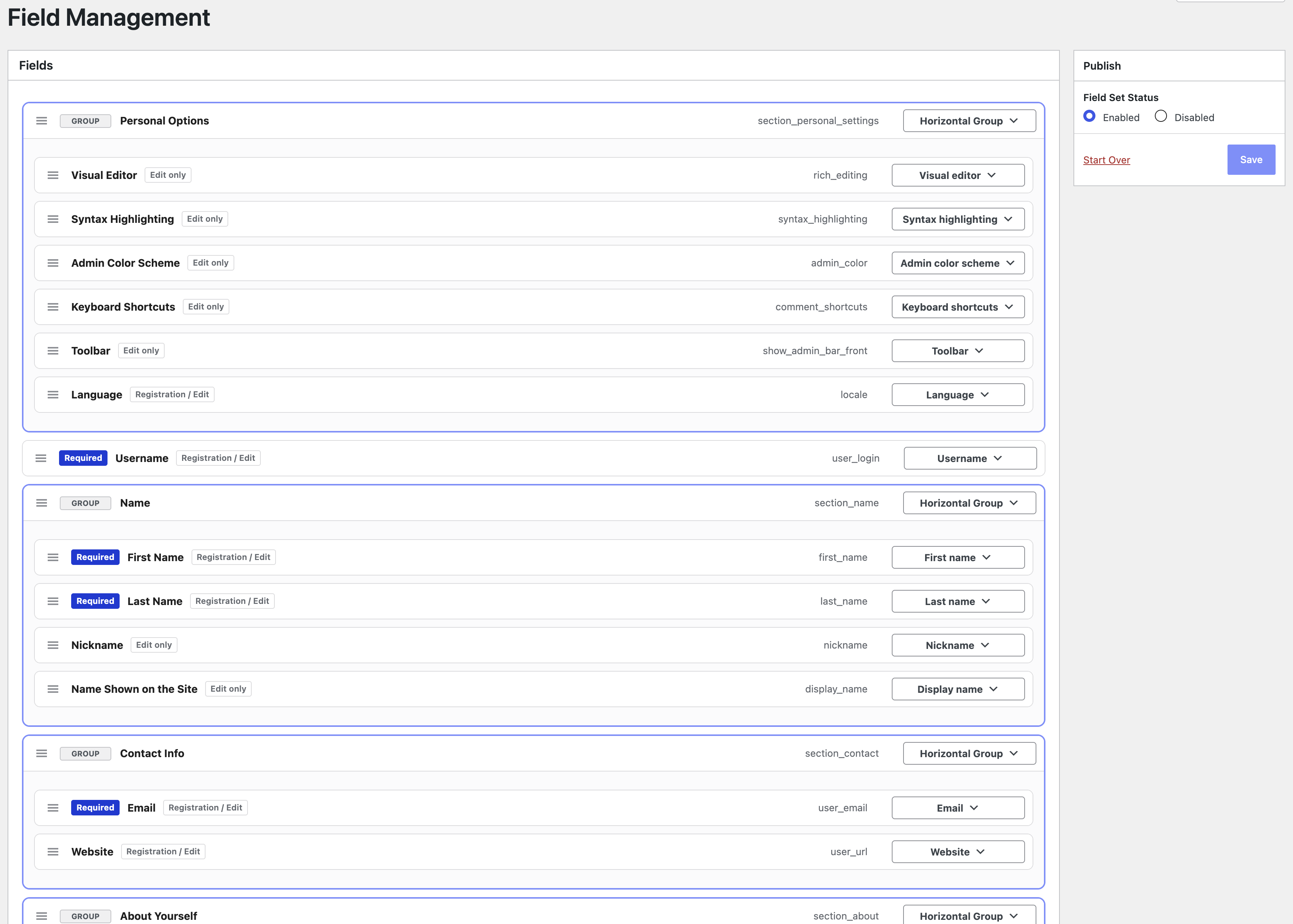
Open atshift User Profile Fields, then Field Management in the WordPress admin menu. On a fresh install, no fields are set yet. You can start in one of three ways.
Start from scratch: add new fields and build only the fields you need.
Use the default set: apply the prepared field set and customize it.
Import a set file: import a field set file exported by this plugin.
After applying the default setStart from a prepared structure, then reorder fields and add your own items.
03
Add profile fields
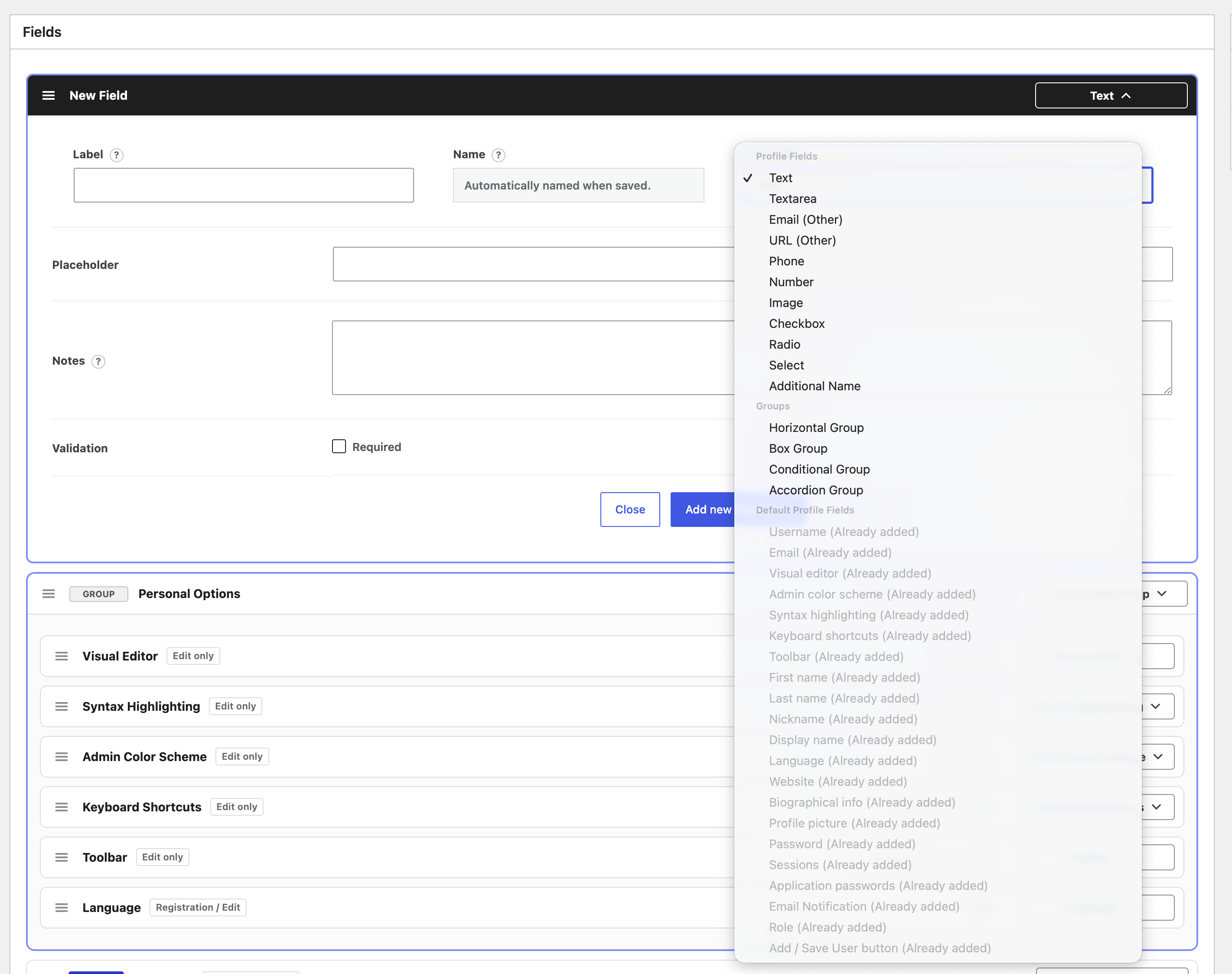
Create fields from Add New Field. Set the label, name, and field type first, then add descriptions and required settings as needed.
Label
The heading shown on the user profile screen.
Name
A unique key used when retrieving the saved value.
Field type
Choose the input method, such as text, choices, or image.
Description and required
Add help text and require input when saving.
Add a new fieldChoose from input fields, layout groups, and WordPress standard fields.
Do not change the name after starting operation. It is used to connect theme output with saved data.
04
Arrange order and layout
Drag fields to reorder them. Inline groups, boxes, and accordions help organize profile screens with many fields.
WordPress standard fields such as username, name, and contact information can be placed together with your custom fields.
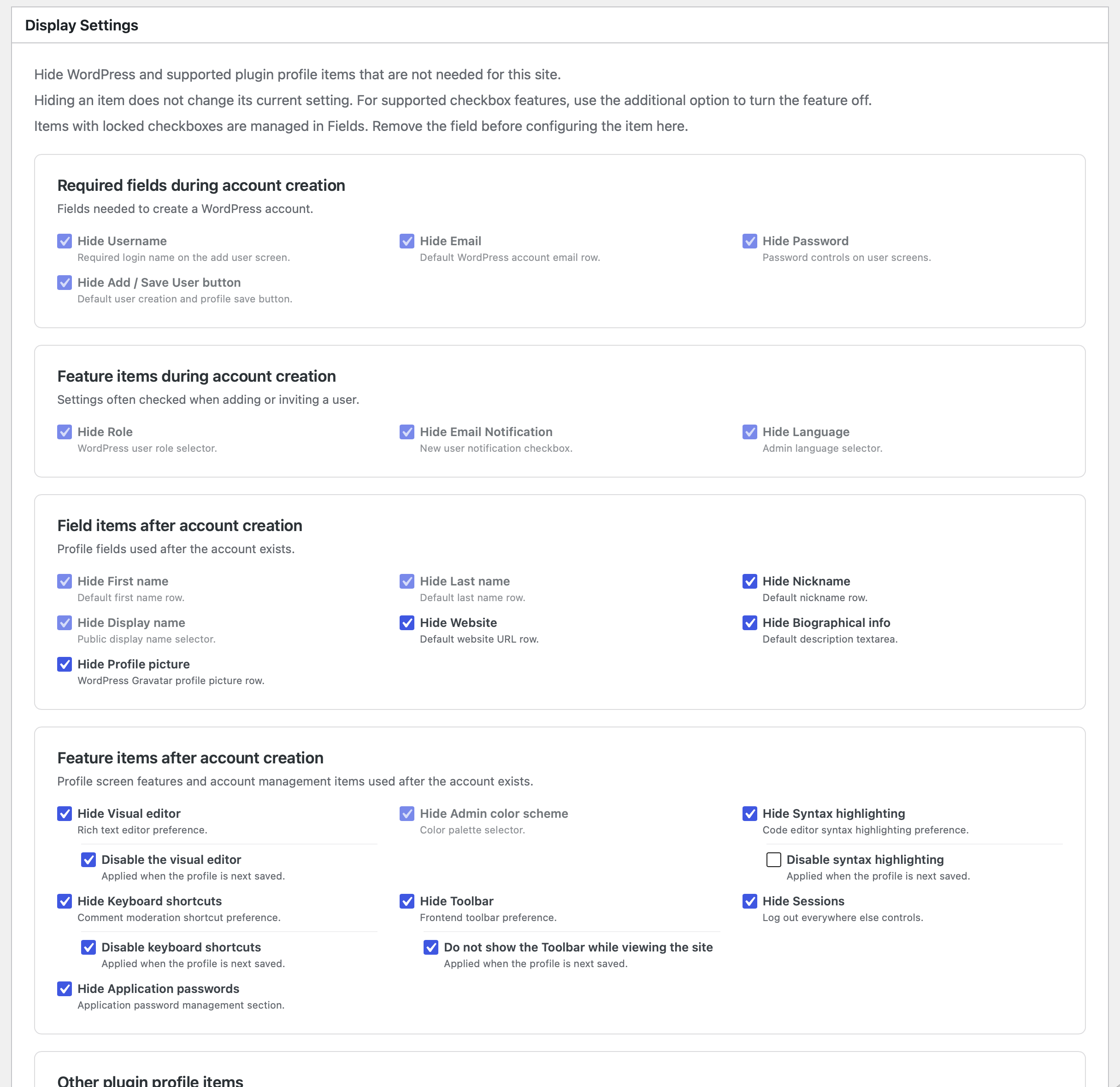
Display SettingsHide unneeded standard profile fields and supported plugin items so the input screen stays focused for your workflow.
05
Save and check the input screen
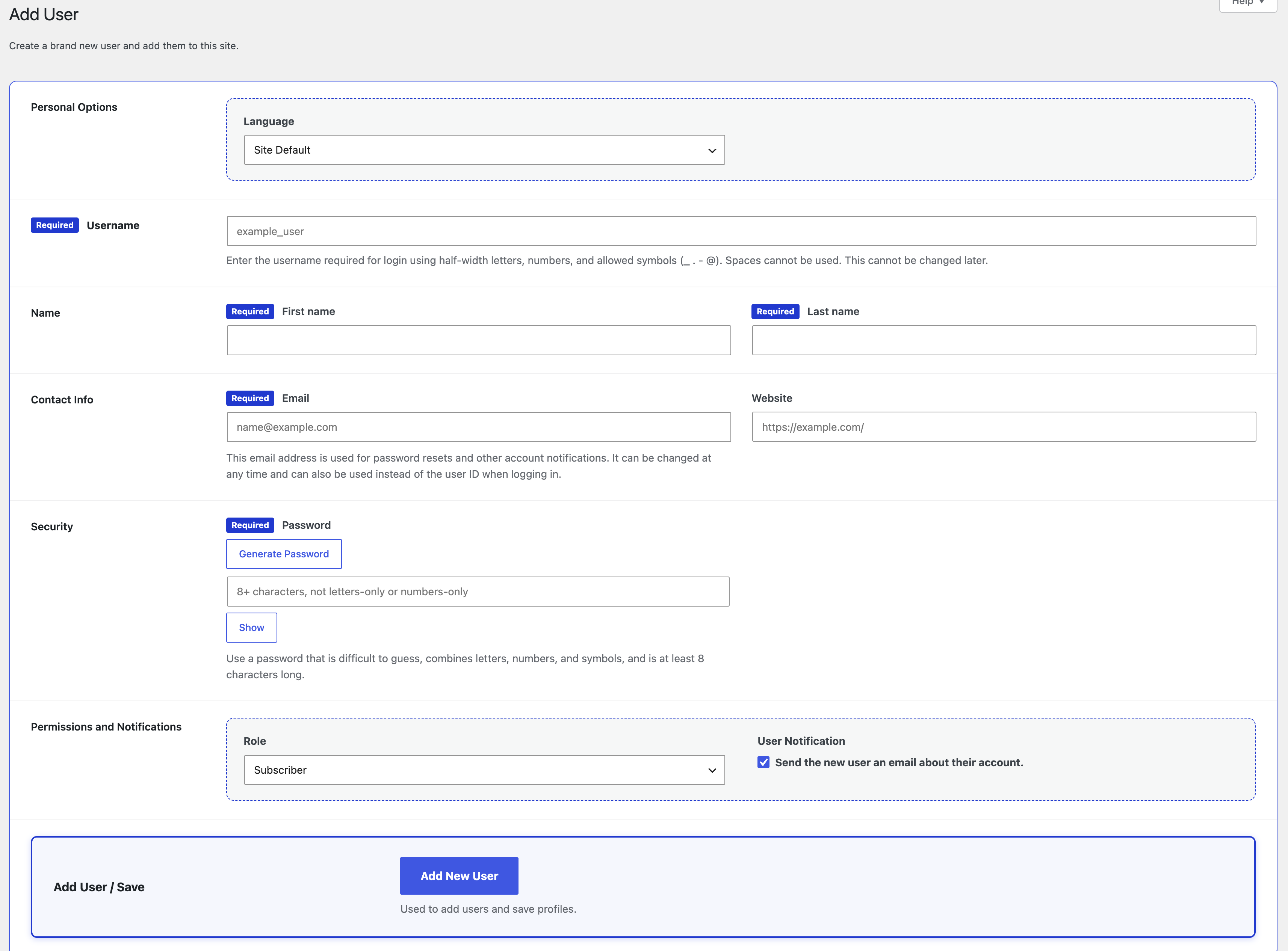
Save the field set, then edit a user from Users, All Users, or Add New User. Confirm that labels, descriptions, inputs, required labels, and field order appear as intended.
Custom fields are saved as user meta that corresponds to the field name.
User add screenAn example of a simplified, purpose-based profile input layout.
06
Reuse field sets
Use import and export under atshift User Profile Fields, Tools to back up field sets as JSON files or move them to another WordPress site.